- Aug 23, 2023
Write Japanese in English! How to Type in Japanese on iOS & macOS Using Latin Letters
- John Fotheringham
- Japanese, Tips & Tools
Of the four core language skills, writing is often given the least attention. This is a mistake.
The ability to write Japanese is a superpower that unlocks countless rewards:
Potential penpals, friends, and romance.
Better jobs, higher pay, and more business opportunities.
Full access to the internet's best tools and resources.
Given the language's use of complex characters, you may assume that writing Japanese is extremely difficult.
It certainly does take a lot of practice, but in many ways, writing Japanese—or at least typing Japanese—is actually quite easy.
It turns out that you can simply use Latin letters to type Japanese on your keyboard, and then select the correct kana or kanji that pop up. And with better and better AI-powered tools, the suggested next words are usually correct!
Here now are step-by-step instructions on how to type in Japanese on iPhones, iPads, and Macs.
Step 1: Install the Roumaji Japanese keyboard
How to install a Japanese keyboard on iOS
On your iPhone or iPad:
Open Settings (設定).
Tap General (一般) and then Keyboard (キーボード).
Tap Keyboards (キーボード).
Tap Add New Keyboard (新しいキーボードを追加).
Scroll down and tap on Japanese (日本語).
Tap on Romaji (ローマ字).
Tap Done (完了).
💡 Pro Tip: If you want to change the order of your keyboards, tap Edit (編集) and then drag Japanese ‒ Romaji (日本語 ‒ ローマ字) to the top.
How to install a Japanese keyboard on macOS
On your Mac:
Click the Apple icon and select System Settings (システム環境設定).
Click on Keyboard (キーボード) near the bottom.
Click Edit in the Input Sources (入力ソース) section.
Click on the plus sign below in the lower-left.
Select Japanese - Romaji (日本語 ‒ ローマ字) from the list.
Click Add (追加).
Step 2: Activate the Japanese keyboard
How to activate the Romaji Japanese keyboard on iOS
Within any textfield, message, email, etc. on your iPhone or iPad:
Hold down the globe icon to the left of the spacebar.
Slide up to Japanese ‒ Romaji (日本語 ‒ ローマ字).
To switch back to English:
Hold down the globe icon again.
Slide up to English.
💡 Pro Tip: Tapping the globe icon once will quickly switch the keyboard to the most recently used input language.
How to activate the Romaji Japanese keyboard on macOS
While typing on your Mac:
Click on the language icon in the upper-right of the screen (e.g. "US").
Select Hiragana (ひらがな), shown next to あ.
To switch back to English:
Click on the language icon again in the upper-right (now marked with "あ").
Select U.S. or whichever English keyboard you use.
💡 Pro Tip: You can also use a keyboard shortcut to quickly change your input language on macOS. The default is ⌃ (Control) + Spacebar, but you can customize the keystrokes under System Settings > Keyboard > Keyboard Shortcuts >Input Sources.
Step 3: Enter Latin letters
Once you've activated the Romaji keyboard on iOS or macOS, you can then simply enter Latin letters on your keyboard and then select the right kana or kanji from the options that appear.
Roumaji Review
In case you need a quick reminder, here is a table with all Japanese kana and their respective romaji.
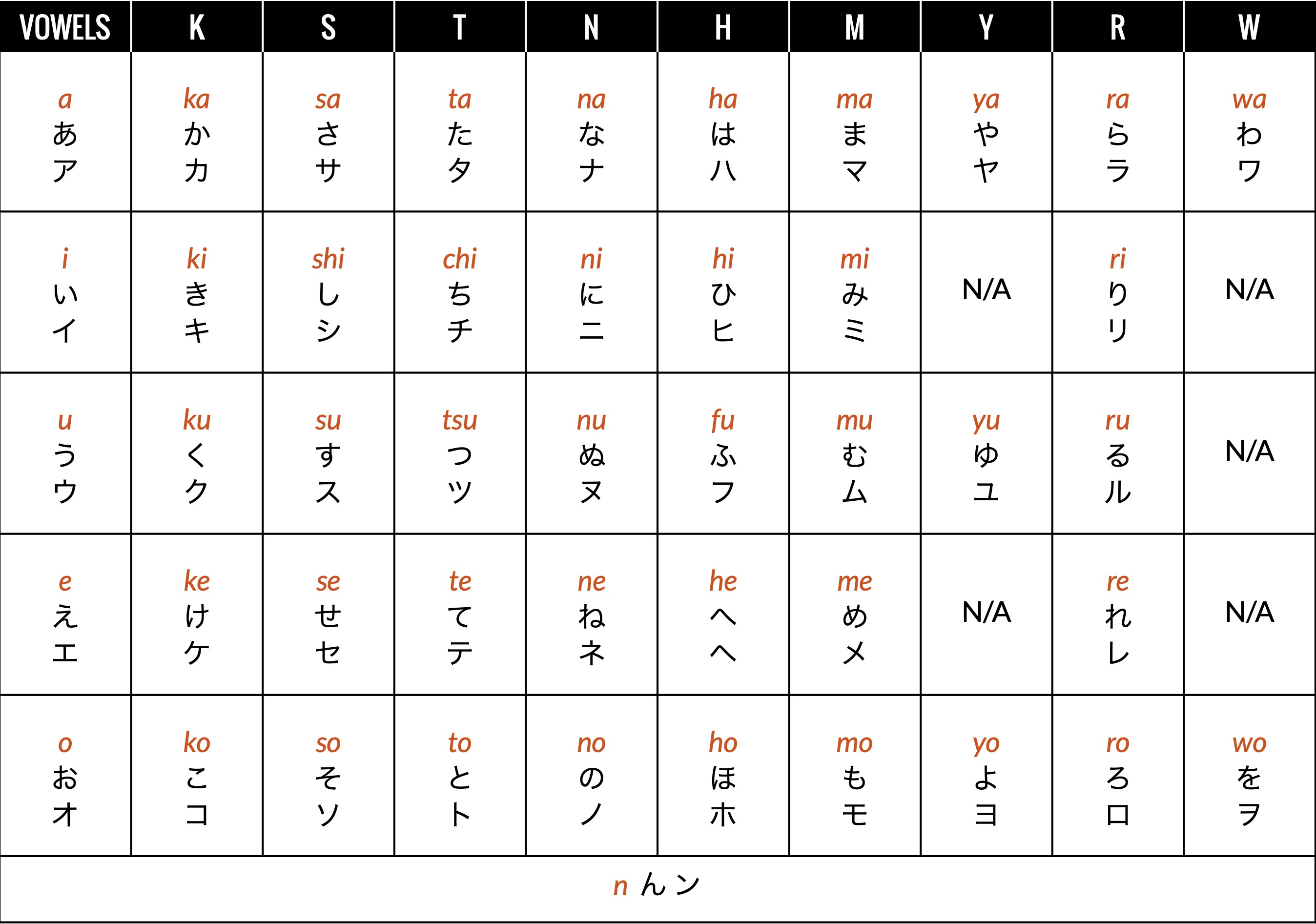
So to type any Japanese syllable or word, you simply type in the respective romaji shown in the table above. For example:
To type ka, you would enter K - A.
To type chi, you would enter C - H - I.
The basic 46 sounds shown in the table above are all straight forward and easy type. However, things get slightly more complex in the following cases:
Typing long / double vowels.
Typing the voiced kana ji (ぢ) and zu (づ).
Typing small vowels and palatalized sounds.
Typing double consonants shown with a small tsu (っ).
Typing Long Vowels
Japanese sometimes distinguishes meaning using doubled up vowels. For example, the words "aunt" (おばさん) and "grandmother" (お祖母さん) sound basically the same, but the latter has a double-long A sound:
aunt = o-ba-san (おばさん)
grandmother = o-baa-san (お祖母さん)
To type double-long vowels in Japanese for a (あ), i (い), u (う), e (え), and o (お), you simply type an additional A, I, U, E, or O.
For example, to type お母さん (“mother”), you would enter:
O - K - A - A - S - A - N
The only exception to this is the long O sound represented by the hiragana u (う). In this case, you have to type the letter U after the first vowel to get the right kana to appear.
For example, to type 東京 (とうきょう, “Tōkyō”), you would enter:
T - O - U - K - Y - O - U
Typing ji (ぢ・ヂ) & zu (づ・ヅ)
To get the kana ぢ・ヂ to show up, you need to enter D - I, not *J - I. This is because another set of kana with the same sound—じ・ジ—are written using J - I.
For example, 千々に (ちぢに, “in pieces”) would be typed:
C - H - I - D - I - N - I
Similarly, you enter D - U, not *Z - U, to type the kana づ・ヅ. Typing Z - U would instead bring up ず・ズ.
For example, to type 続ける (つづける, “to continue”), you would enter:
T - S - U - D - U - K - E - R - U
Typing palatalized sounds
Japanese has a set of palatalized sounds that can be created by adding a small ya (ゃ), yu (ゅ), or yo (ょ) to kana in the I-line.
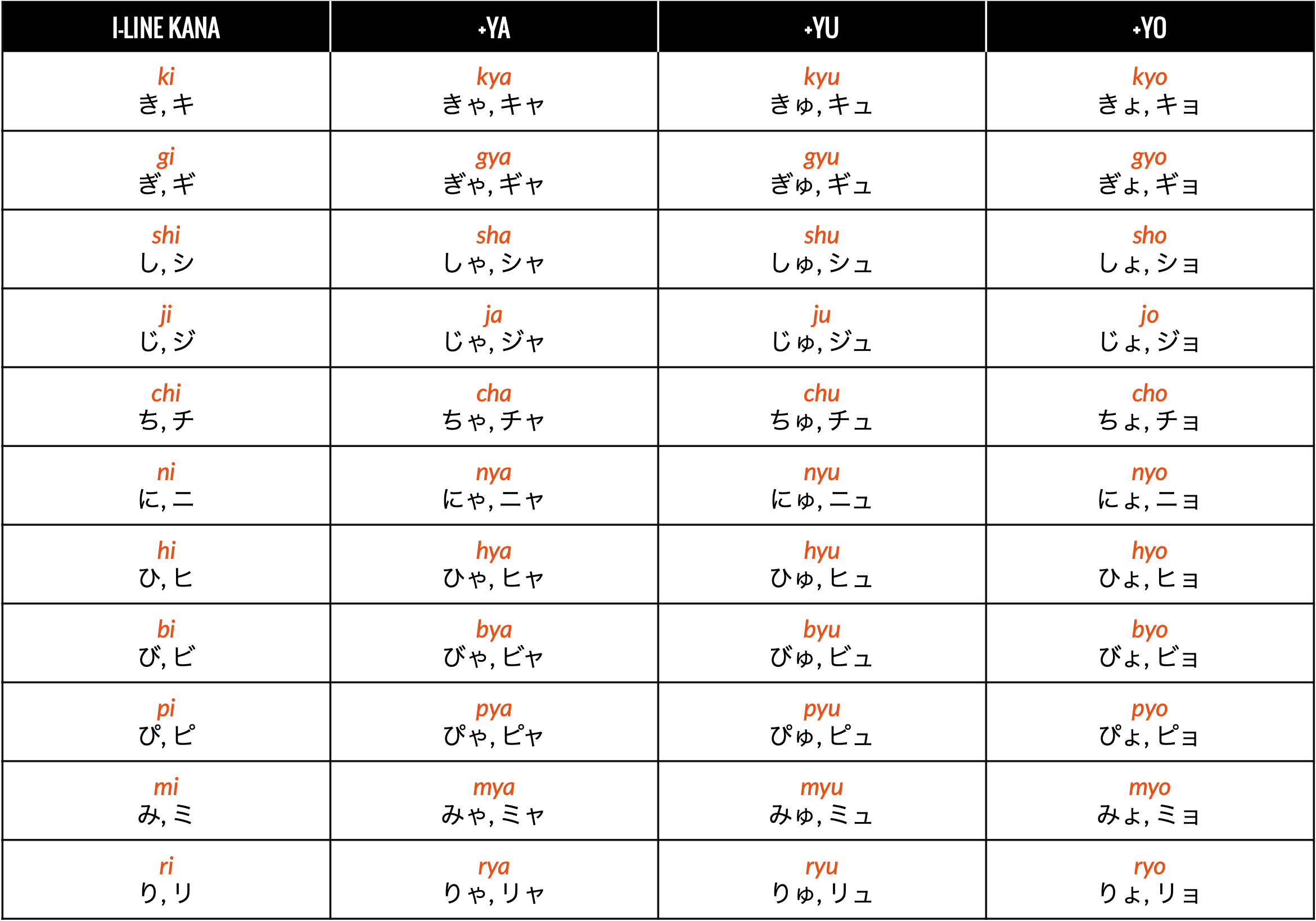
To type these sounds, simply enter the romaji shown in the table above. For example, to type mya (みゃ・ミャ), simply key in:
M - Y - A
Typing small vowels
Occasionally, you will need to type small vowels in katakana—ァ (a), ィ(i), ゥ(u), ェ(e), or ォ(o)—to properly capture foreign names.
To do so, simply type in either the letter X or L right before the vowel you want to shrink down.
For example, to type サンティアゴ (“Santiago”), which has a small ィ, you would key in:
S - A - N - T - E - X - I - A - G - O
Typing double consonants
In addition to double vowels, Japanese also has so-called "double consonants," "geminate consonants," or soku-on (促音) in Japanese.
These sounds are made by holding certain consonant sounds for an extra beat, and then releasing the sound.
In roumaji, they are written with two consonant letters in a row (e.g. tt or kk), while in kana, a small tsu (っ・ッ) is used.
To type double consonants, simply type the same consonant twice in a row.
For example, to type 結婚 (“marriage”), you would enter:
K - E - K - K - O - N
For a double consonant falling before shi (し・シ) or chi (ち・チ), enter an extra S or T respectively before typing S - H- I or C - H - I.
For example, to type 発信 (“dispatch”), you would enter:
H - A - S - S - H - I - N
To type あっち (“that way”), key in:
A - T - C - H - I
Step 4: Select the Correct Characters & Words
Now that we know how to type in the correct romaji, let's get to the fun bit: actually selecting Japanese words written in kana and kanji!
Let's say you want to type 日本語 (“the Japanese language”):
First, type out the romaji for the word: N - I - H - O - N - G - O.
On iOS, tap on the suggested word 日本語 above the keyboard.
On macOS, the word should automatically change as you type.
If not, hit the space bar until you get to the correct word.
Press enter to continue on to the next word.
Rinse and repeat until you are done with your sentence.
💡 Pro Tip: You can also just type an entire sentence and let the algorithm automatically select the correct words, characters, and kana based on context. It's not 100% accurate, but it comes pretty darn close.
⚠️ Note: Japanese has a number of homonyms (different words with the same pronunciation). For example, the exact same letters N - I - H - O - N could also refer to “two cylindrical objects” (二本) instead of “Japan” (日本). When the wrong word appears for a given romaji sequence, just keep hitting the space bar until you find the word you're looking for.
About the Author
Hi, I’m John Fotheringham, a linguist, teacher, author, and the creator of the Anywhere Immersion Method™ (or A.I.M. for short).
Whether you are dipping your toes into the linguistics waters for the first time or are ready to dive into the deep end of full language immersion, I will give you the tips and tools you need to succeed (and not feel like you’re drowning along the way).
My blog, books, courses, and newsletter provide the expert guidance you need to learn any language, anywhere, anytime through the power of immersion.
Happy diving!
🤿 Get my best immersion tips + tools 🐠
Join my free Fluency Friday newsletter to get the tips and tools you need to get fluent anywhere in the world.
Download my Free
Immersion Guide
My free Quickstart Immersion Guide shows you how to immerse yourself in any language, anywhere, anytime. You'll learn:
Which essential tools to use.
How to boost comprehension.
How to get fluent right at home.
How to master your mindset.